 15 Days Money-back Guarantee
 Smile Safe & Secure online payment
 Dedicated Support
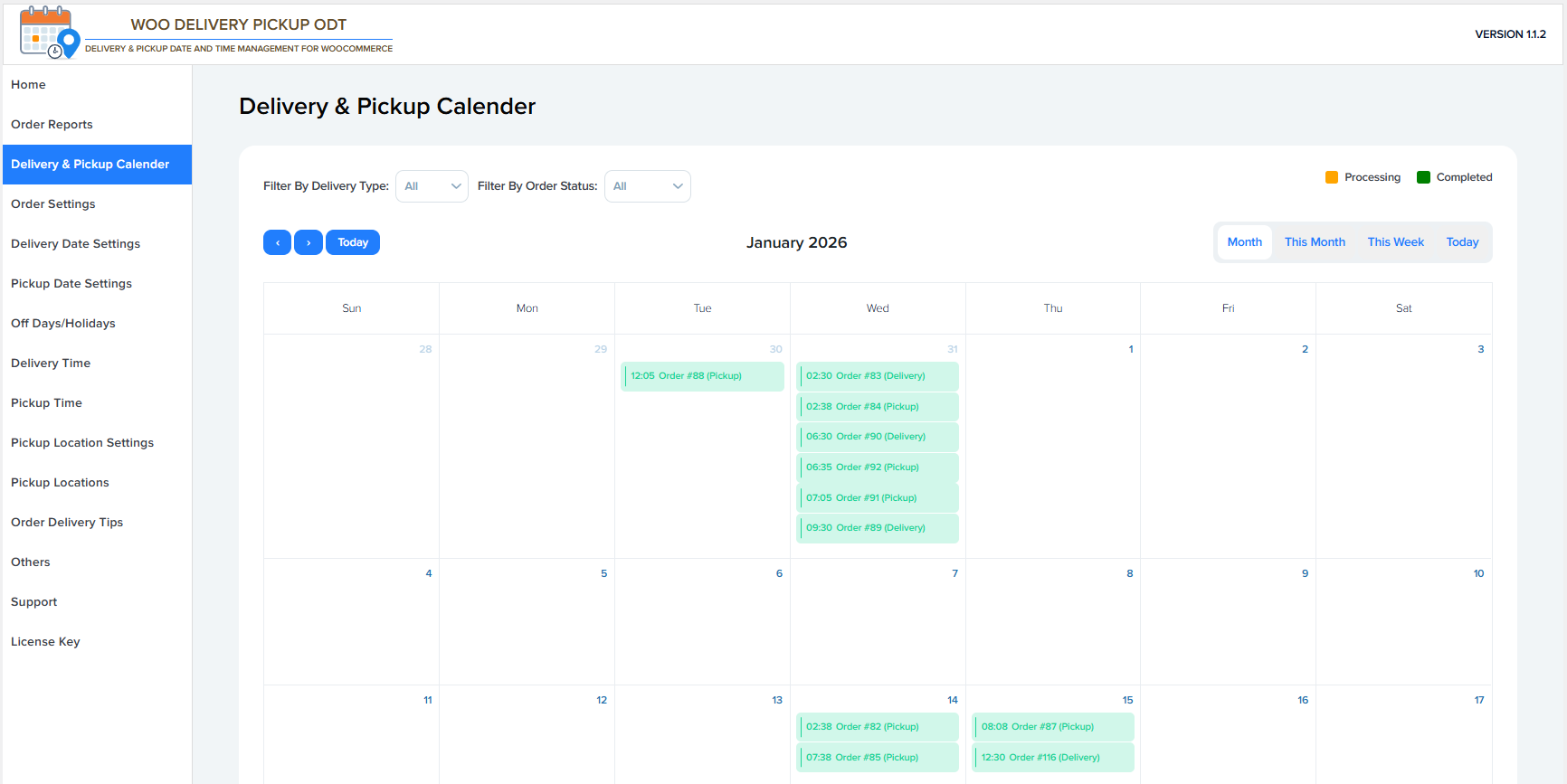
Filter by Delivery Type
- Filters calendar entries based on order type.
- Options typically include:
- All
- Delivery
- Pickup
- Helps focus only on relevant orders.
Filter by Order Status
- Filters orders by WooCommerce status.
- Example options:
- All
- Processing
- Completed
- Useful for tracking pending vs fulfilled orders.
Legend (Top-Right)
- Orange → Processing orders
- Green → Completed orders
- Helps visually identify order status at a glance.
🧭 Calendar Navigation Controls
Previous / Next Buttons
- Navigate to the previous or next time period (month/week/day).
Today Button
- Instantly jumps the calendar view to today’s date.
Month / This Month / This Week / Today
- Month – Standard monthly calendar view
- This Month – Jumps to the current month
- This Week – Displays a weekly view
- Today – Displays only today’s orders
Current Month Display
- Shows the currently selected month and year.
- Example shown: January 2026
🗓️ Calendar Grid
Day Columns (Sun–Sat)
- Displays days of the week in a standard calendar layout.
Date Cells
- Each cell represents a specific calendar date.
- Contains delivery and pickup orders scheduled for that day.
📦 Order Entries (Inside Calendar)
Each order entry shows:
- Time – Scheduled delivery or pickup time
- Order Number – WooCommerce order ID
- Order Type – Delivery or Pickup
Example:
- 12:05 Order #88 (Pickup)
Order Color Coding
- Green entries → Completed orders
- Orange entries → Processing orders
Scrollable Order List
- If many orders exist on a single day, the list becomes scrollable.
- Prevents layout overflow while keeping all orders accessible.
🎯 Practical Use Cases
- Quickly plan daily deliveries and pickups
- Avoid time slot conflicts
- Monitor order completion status visually
- Improve warehouse and delivery scheduling