 15 Days Money-back Guarantee
 Smile Safe & Secure online payment
 Dedicated Support

Order Delivery & Pickup Location Date Time
However, to fulfill the order, you may require…
- Version : 1.1.0
- Last Updated : 06.01.2026

Time required to prepare an order
Not all products are identical. Occasionally, additional preparation time is necessary before shipping can occur.
Maximize cost-effectiveness of shipping
Ensure timely delivery
Organize Local Deliveries & Pickups within WooCommerce’s Schedule
With Order Delivery & Pickup Location Date Time, you can establish various delivery schedules, apply charges for weekdays and special dates, organize local pickup dates, and notify customers when their orders are ready.
Provide your customers with special treatment and encourage loyalty – 83% appreciate it!

Sometimes, it’s best to discover and experience things for yourself.
An innovative delivery scheduling plugin designed for retail stores.
Delivery & Pickup Location Date Time for WooCommerce features can help you provide speedy service and quick order fulfillment
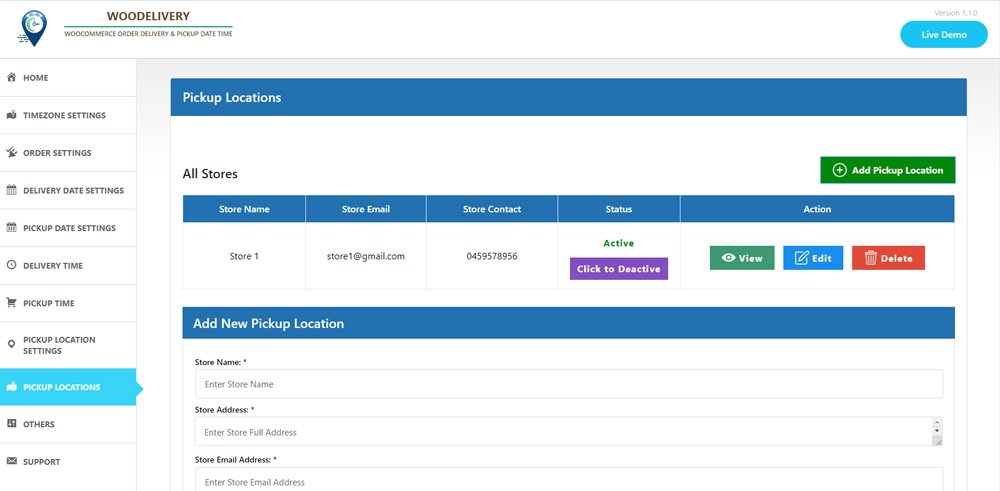
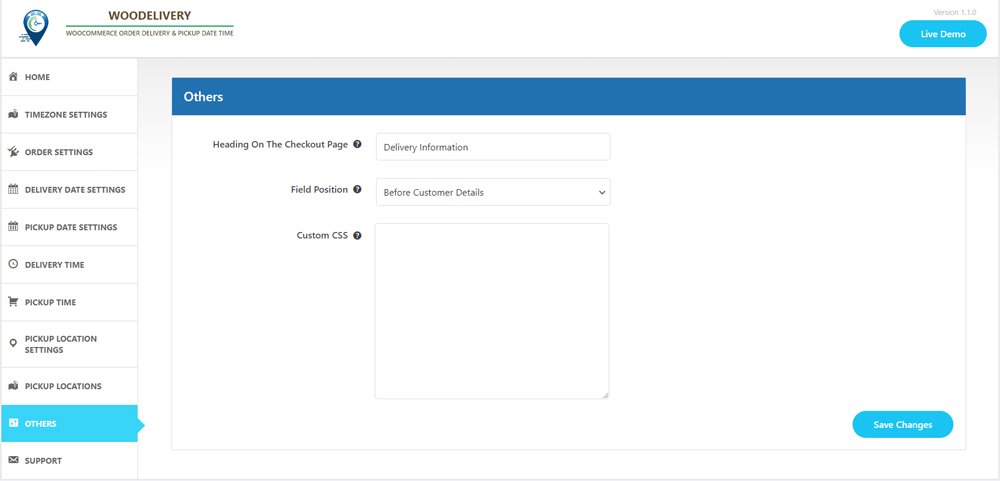
Enable customers to choose their desired pickup/delivery date and time.
Schedule and manage deliveries according to customer
- Customers have the option to choose between pickup and delivery on checkout page.
- Customers have the option to choose date and time.
Methods of shipment
Certain online stores need their delivery schedules to align with specific shipping methods.
- Select one or multiple shipping methods
- Incorporate delivery date and time settings for shipping methods. Additionally, you can include extra charges if necessary.
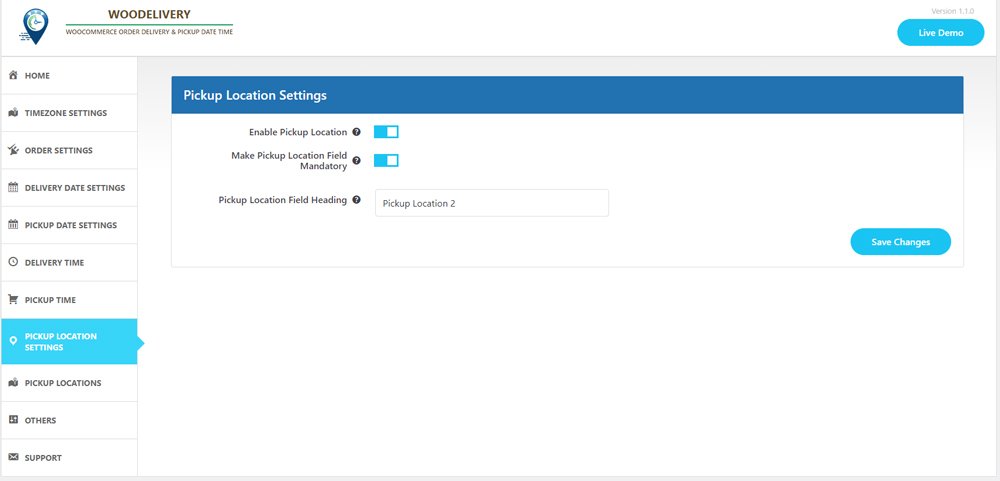
Pickup Location
If you’re providing pickup services for your products, this option is tailored for you.
- Choose the product and select your desired pickup location.
- Add Multiple pickup location, address, phone number and email
- The date and time slot may vary based on the location chosen by the customer.
Express delivery options for same day and next day service
- Establish delivery fees for same-day and next-day delivery services.
- Delivery fees may vary depending on the time.
Minimum required delivery time
Store owners may need a certain amount of preparation time before their products are ready for delivery to customers.
- Set the minimum delivery time
- You can oversee the start time and end time for each day of the week, from Monday to Sunday.
Compatible with the WooCommerce Checkout block feature
- Accessible within the “Shipping Address” block
- Pickup location, delivery date, and time slot fields will appear accordingly.
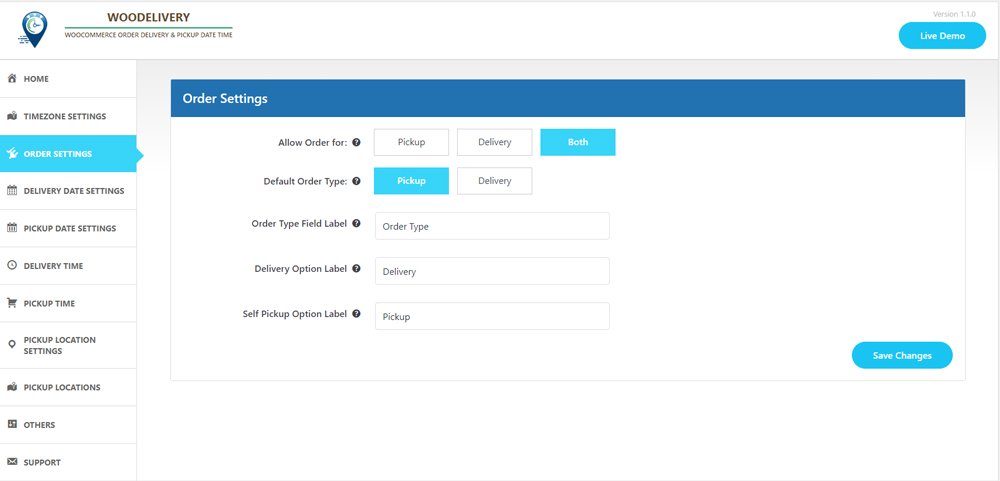
Determine the delivery type before selecting the date.
Allow your customers to effortlessly choose between Pickup or Delivery options before entering their address or selecting the delivery date.
- Offer pertinent delivery dates based on the user’s selected delivery type preference.
- Ensure a seamless customer experience when they choose delivery dates.
Delivery/Pickups time slot interval
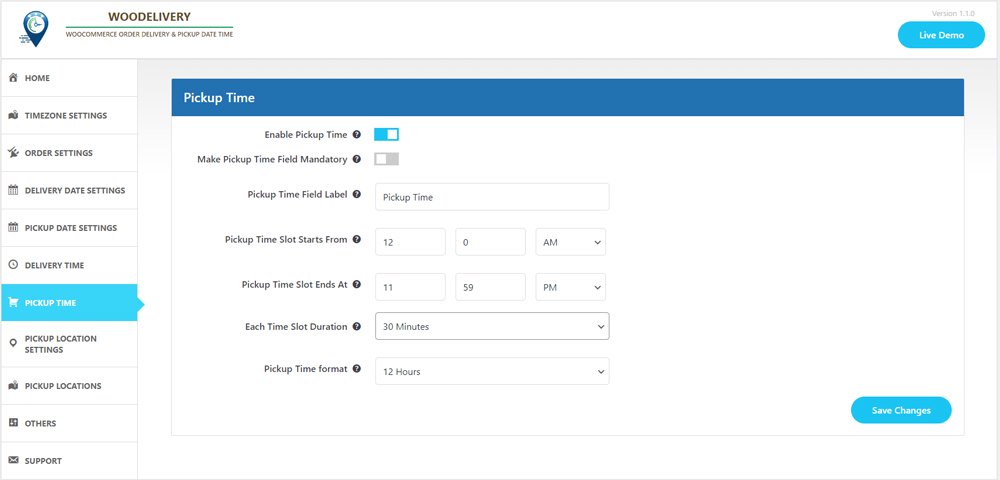
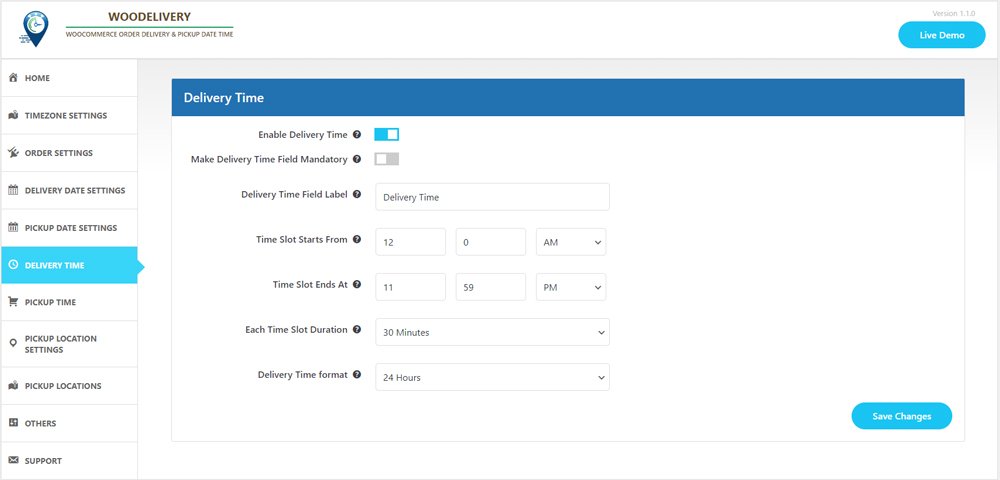
- Customers can choose between time slot intervals of 30 minutes or 60 minutes.
- You can configure the start time and end time for each day of the week, from Monday to Sunday.
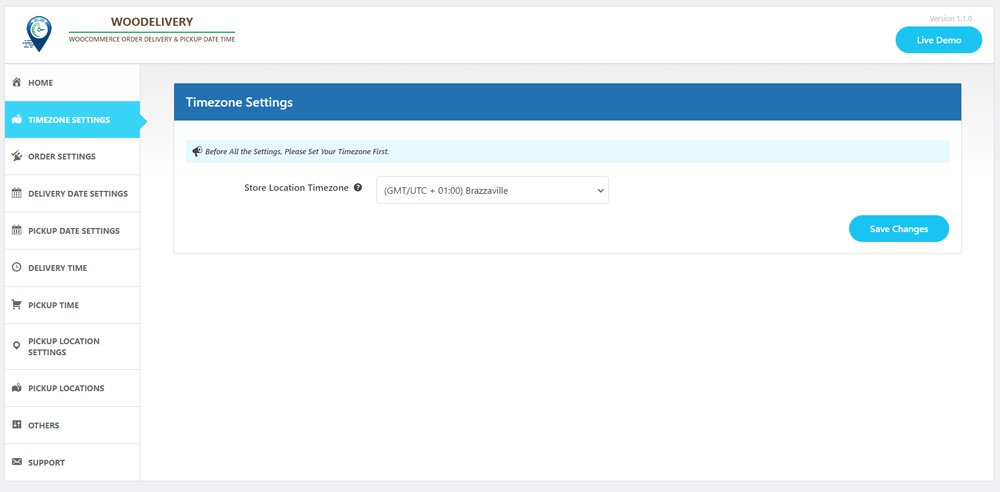
Hold on, the list isn’t complete yet
- Issue reminders prior to deliveries.
- Establish a store-wide order limit for custom delivery schedules.
- Apply charges exclusively to orders that fall below a certain amount.
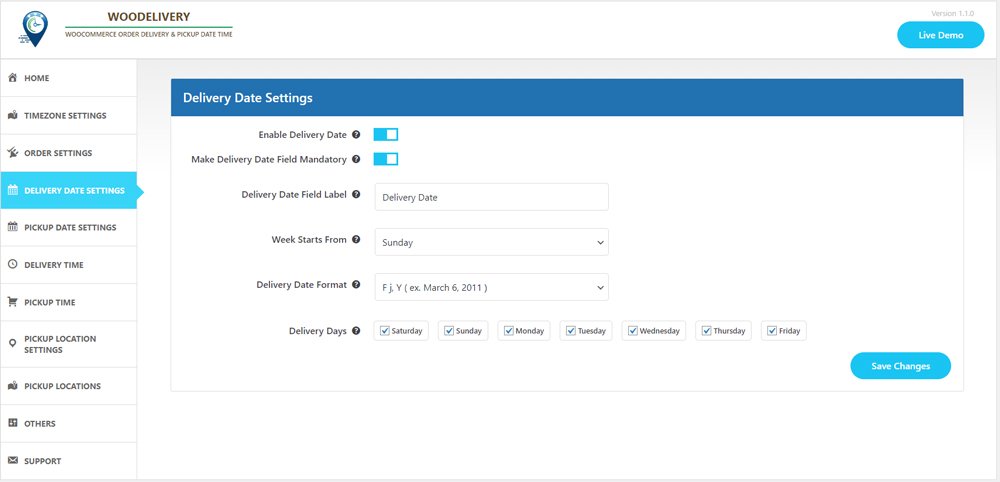
- Deactivate the weekdays on which product deliveries are not available.
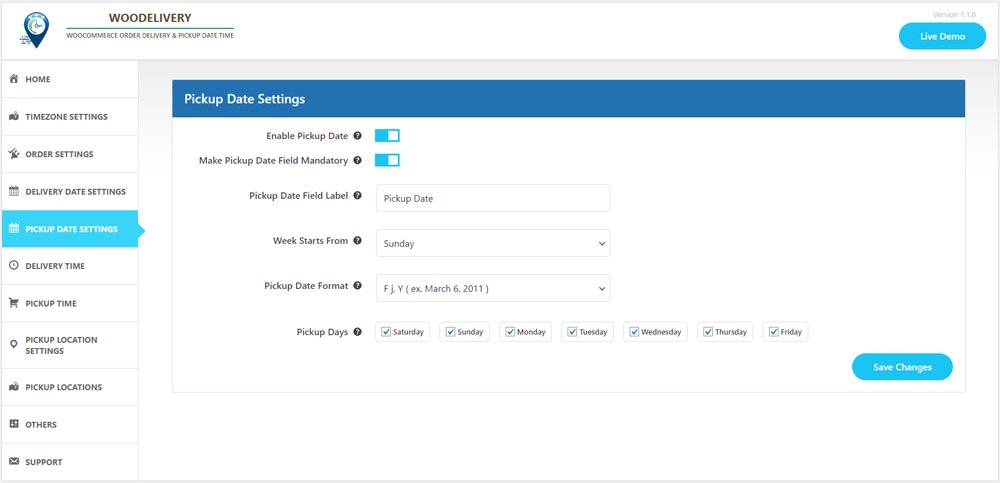
- Make the delivery time field either mandatory or optional on the checkout page.
- Customize the labels for the delivery date and time fields according to your business needs.
- You have the option to include additional charges for specific time slots on each day of the week.
It’s not just about the plugin; it’s about the overall experience we deliver

10,000+ customers trust us

Outstanding customer support

Regular Product Updates

Exceptional code quality

We value customer feedback
Plugin Screenshot
No Result Found!
The carousel you requested could not be found. Try changing your module settings or add some new slides.
Testimonial
No Result Found!
The carousel you requested could not be found. Try changing your module settings or add some new slides.
FAQ
Vestibulum rhoncus volutpat nisl eu finibus
Nam sodales lectus mauris
Praesent eget commodo massa
Mauris sit amet risus tellus
Morbi quis purus ut erat placerat ullamcorper nec et turpis
Latest Articles
Settings
License Key Advanced Settings Upsells Products Related Products Replace Layout Responsive Settings Custom CSS Overview Getting Started System Requirements Installation & Activation Guide Updating the Plugin Admin Panel Overview Create Your First Slider Create a...
Typography
Typography (1) Load Product Showcase Section Title Font: A user can ON/OFF Google Fonts with this option. Turning ON: Google Fonts will be loaded for the Slider Section Title.In the case of CSS, it adds the ‘font-family’ property in the markup.It won’t work if the...
Slider Controls
Slider Controls (1) Slider Mode: There are two Slider Modes available in the Slider Controls. They are: Standard: Standard Mode denotes the Product Slider to run in a carousel mode with an interval between the slider items. By default, this option is turned ON. You...
Image Settings
Image Settings (1) Image: You can Show/Hide the Product image by selecting SHOWand HIDEfrom this option. (2) Border:Set border for product image. (3) Image Flip: Image Flip adds a flip effect to your WooCommerce product thumbnail images. It takes the first image from...
Display Options
Display Options (1) Product Showcase Section Title:You can control the display of the Showcase Section Title by this option. Set SHOWto show the Title or set HIDEif you don’t want to show the title. (2) Section Title Linking:Link the section title with a custom URL....
Template Settings
Template Settings (1) Layout Preset: Choose a layout preset you want from the 4 available options. (2) Column(s): Set slider column(s) in different devices (Desktop, Mobile, etc). (3) Choose a Template Type: You can choose a template type as you wish....
General Settings
General Settings (1) Filter Products: Select any filter to specify which product type you want to display on the slider. You can choose from 18 different filter options. They are: (i) Latest: This term is used to show all the newest products you have added to your...
All Sliders (Add New Slider)
General Settings Template Settings Display Options Image Settings Slider Controls Typography Overview Getting Started System Requirements Installation & Activation Guide Updating the Plugin Admin Panel Overview Create Your First Slider Create a New Product Slider...
Layout Presets
Steps to Override the WooCommerce Product Slider Template Follow the steps below to override a template file from the WooCommerce Product Slider plugin: Create a folder named woo-product-slider inside your active theme directory. (It’s recommended to use a child theme...
Create Your First Slider
Create a New Product Slider Modify an Existing Product Slider Delete an Existing Product Slider Overview Getting Started System Requirements Installation & Activation Guide Updating the Plugin Admin Panel Overview Create Your First Slider Create a New...
Money Back Guarantee
- Mauris sit amet risus tellus
- Sed commodo varius mi
- Morbi quis quam ut ligula fringilla