 15 Days Money-back Guarantee
 Smile Safe & Secure online payment
 Dedicated Support

Order Delivery & Pickup Location Date Time
However, to fulfill the order, you may require…
- Version : 1.1.0
- Last Updated : 06.01.2026

Time required to prepare an order
Not all products are identical. Occasionally, additional preparation time is necessary before shipping can occur.
Maximize cost-effectiveness of shipping
Ensure timely delivery
Organize Local Deliveries & Pickups within WooCommerce’s Schedule
With Order Delivery & Pickup Location Date Time, you can establish various delivery schedules, apply charges for weekdays and special dates, organize local pickup dates, and notify customers when their orders are ready.
Provide your customers with special treatment and encourage loyalty – 83% appreciate it!

Sometimes, it’s best to discover and experience things for yourself.
An innovative delivery scheduling plugin designed for retail stores.
Delivery & Pickup Location Date Time for WooCommerce features can help you provide speedy service and quick order fulfillment
Enable customers to choose their desired pickup/delivery date and time.
Schedule and manage deliveries according to customer
- Customers have the option to choose between pickup and delivery on checkout page.
- Customers have the option to choose date and time.
Methods of shipment
Certain online stores need their delivery schedules to align with specific shipping methods.
- Select one or multiple shipping methods
- Incorporate delivery date and time settings for shipping methods. Additionally, you can include extra charges if necessary.
Pickup Location
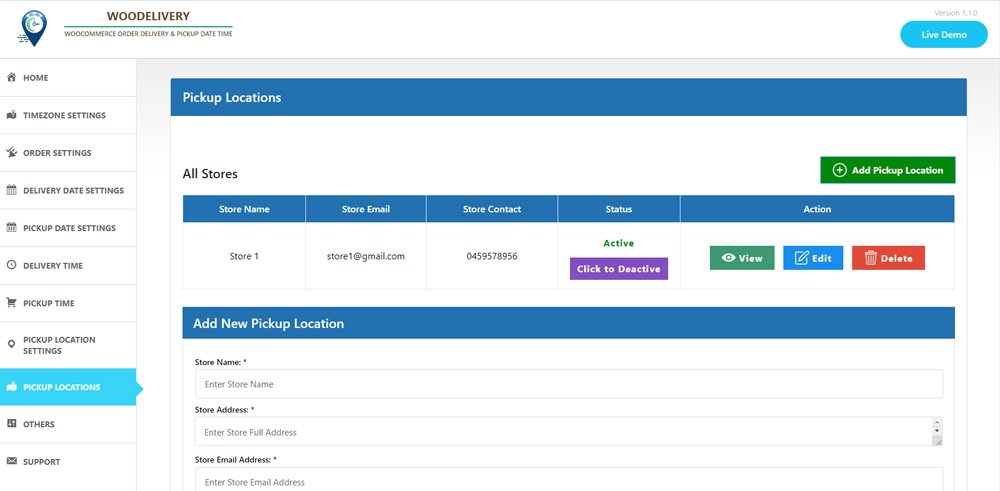
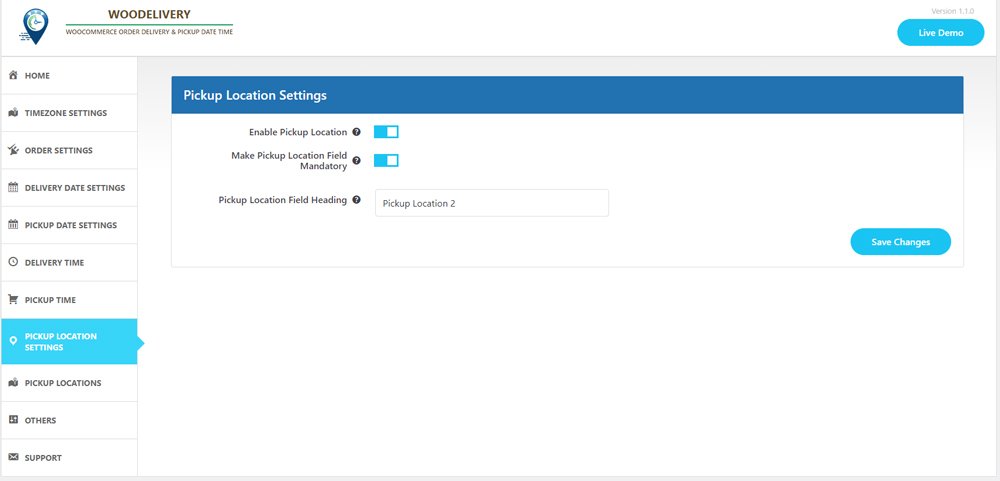
If you’re providing pickup services for your products, this option is tailored for you.
- Choose the product and select your desired pickup location.
- Add Multiple pickup location, address, phone number and email
- The date and time slot may vary based on the location chosen by the customer.
Express delivery options for same day and next day service
- Establish delivery fees for same-day and next-day delivery services.
- Delivery fees may vary depending on the time.
Minimum required delivery time
Store owners may need a certain amount of preparation time before their products are ready for delivery to customers.
- Set the minimum delivery time
- You can oversee the start time and end time for each day of the week, from Monday to Sunday.
Compatible with the WooCommerce Checkout block feature
- Accessible within the “Shipping Address” block
- Pickup location, delivery date, and time slot fields will appear accordingly.
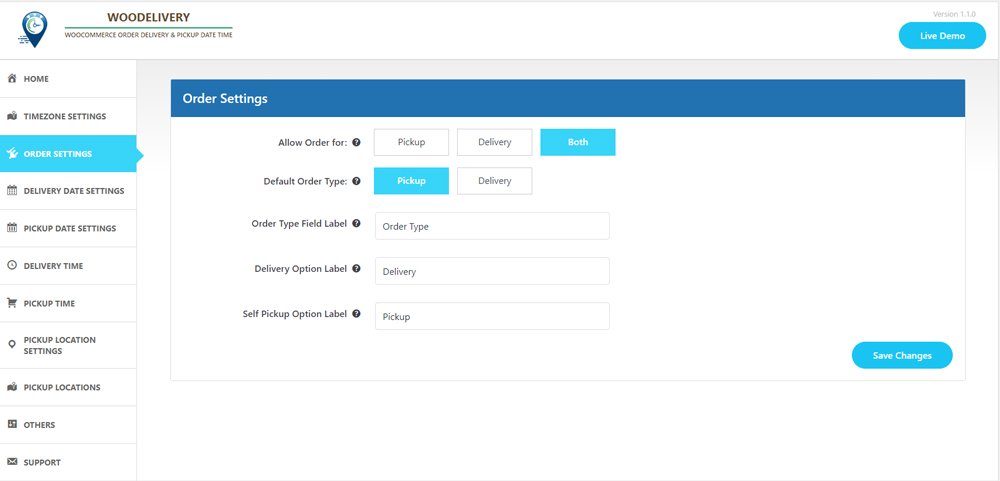
Determine the delivery type before selecting the date.
Allow your customers to effortlessly choose between Pickup or Delivery options before entering their address or selecting the delivery date.
- Offer pertinent delivery dates based on the user’s selected delivery type preference.
- Ensure a seamless customer experience when they choose delivery dates.
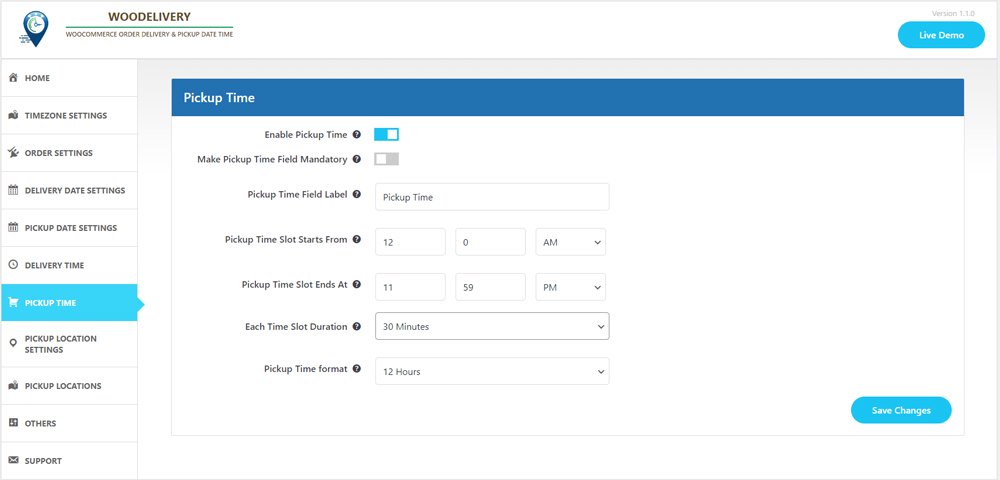
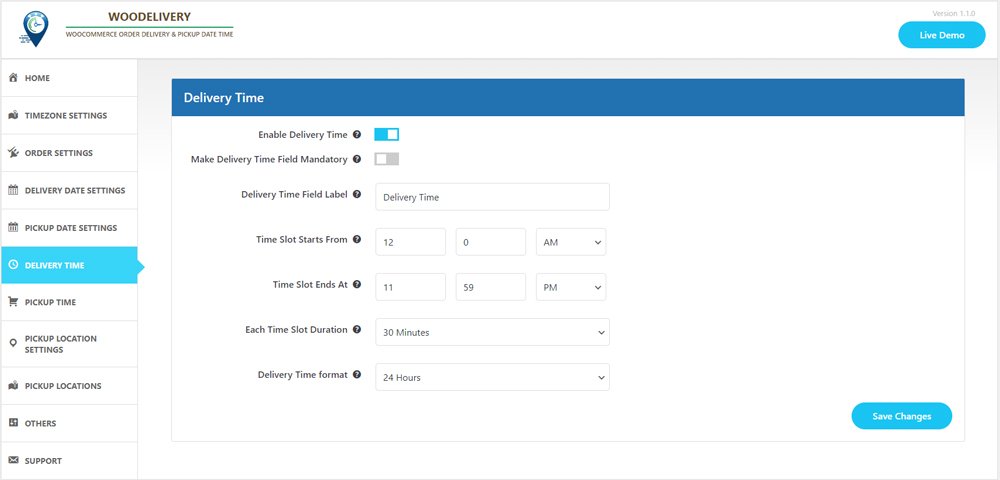
Delivery/Pickups time slot interval
- Customers can choose between time slot intervals of 30 minutes or 60 minutes.
- You can configure the start time and end time for each day of the week, from Monday to Sunday.
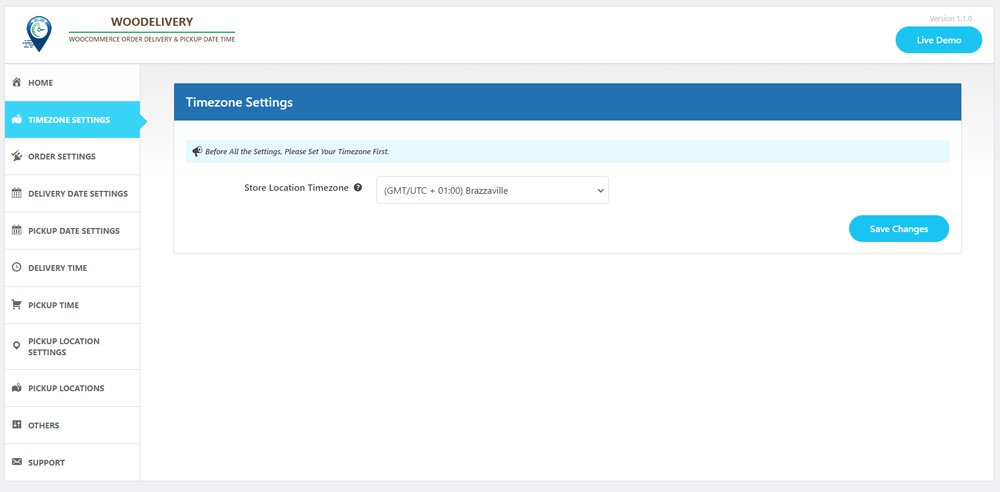
Hold on, the list isn’t complete yet
- Issue reminders prior to deliveries.
- Establish a store-wide order limit for custom delivery schedules.
- Apply charges exclusively to orders that fall below a certain amount.
- Deactivate the weekdays on which product deliveries are not available.
- Make the delivery time field either mandatory or optional on the checkout page.
- Customize the labels for the delivery date and time fields according to your business needs.
- You have the option to include additional charges for specific time slots on each day of the week.
It’s not just about the plugin; it’s about the overall experience we deliver

10,000+ customers trust us

Outstanding customer support

Regular Product Updates

Exceptional code quality

We value customer feedback
Plugin Screenshot
No Result Found!
The carousel you requested could not be found. Try changing your module settings or add some new slides.
Testimonial
No Result Found!
The carousel you requested could not be found. Try changing your module settings or add some new slides.
FAQ
Vestibulum rhoncus volutpat nisl eu finibus
Nam sodales lectus mauris
Praesent eget commodo massa
Mauris sit amet risus tellus
Morbi quis purus ut erat placerat ullamcorper nec et turpis
Latest Articles
Delivery/pickup slots availability depending on week days
Delivery/pickup slots availability depending on week days Create different time slots for each week day, so when you have regular time slot available from Monday to Friday, you can set different tiem slot for weekends, ie for Saturday & Sunaday.List your pickup...
Autometic/Custom time slot Creation.
a. Autometic slot creation: You just define when your delivery hours starts, when it ends. If there is any break time, just define at waht time ot starts and when ot stops. ‘Woo Delivery Pickup ODT’ pluign will automatically convert it to 30 minutes slots. b. Custom...
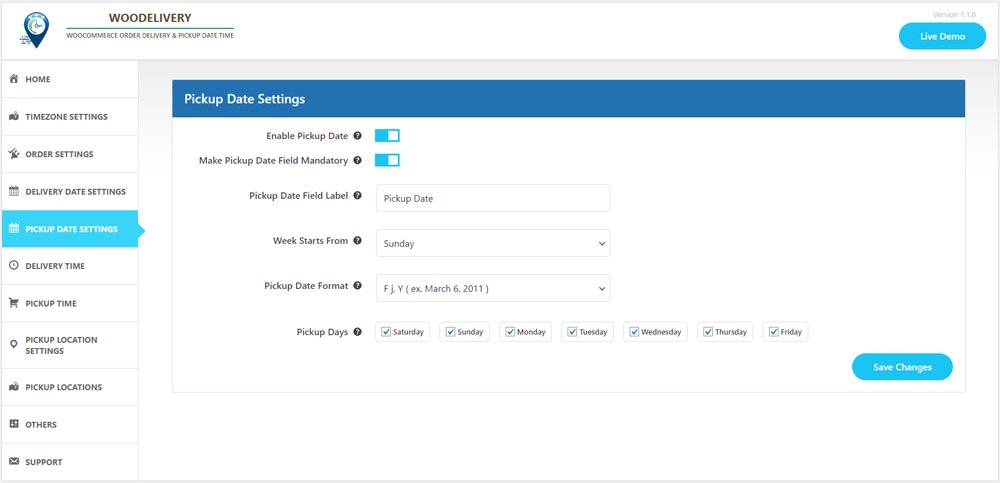
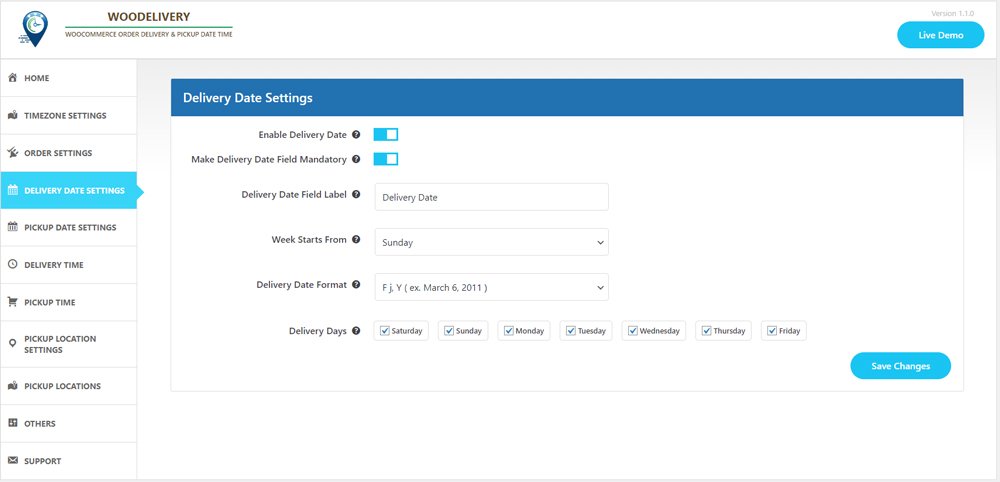
Allow selecting Delivery & Pickup days.
WooCommerce delivery days and pickup days You can decide on which day(s) you will allow pickup of order(s) as well you can select all the seven days in a week or individuals day(s). When customers will select pickup date from widget or on checkout page, the calendar...
Allow different Order Types.
Pickup only store If store is setup as pickup only then customers will see only pickup option on checkout page along with option to choose a preferred date and time slot, and of-course a pickup location. Date and time slot can be vary depending on what location is...
Be Careful About Some Plugin Settings
Our plugin has some features which are rarely used but those settings are needed. But sometimes our client misunderstanding those settings and set up them and as expected they are stuck and not finding any reason.
Delivery and pickup orders showing on calendar filtered wise.
Filter by Delivery Type Filters calendar entries based on order type. Options typically include: All Delivery Pickup Helps focus only on relevant orders. Filter by Order Status Filters orders by WooCommerce status. Example options: All Processing Completed Useful for...
Listing and Manage of all Orders
Select Filter Allows you to filter orders based on delivery or pickup conditions. Helps quickly find specific orders instead of browsing all records. Show Entries Controls how many orders are displayed per page. Example shown: Show 3 entries Useful for managing large...
Know about other settings
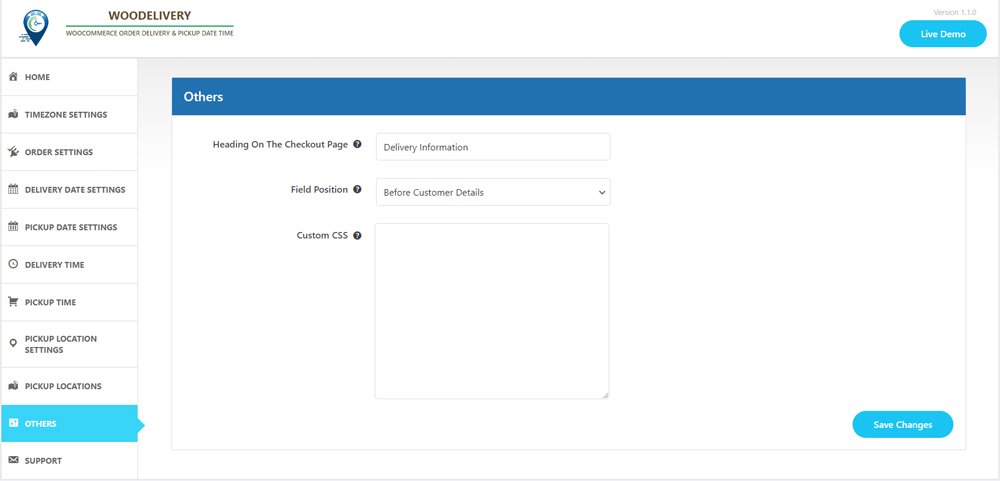
Heading On The Checkout Page Sets the section heading text displayed on the WooCommerce checkout page. This heading appears above delivery and pickup-related fields. Example shown: Order Delivery Informations Useful for grouping all delivery details under a clear...
Add Order Tips and users allow to add custom tips amount.
Enable Delivery Tips Field Turns the Delivery Tips option ON or OFF at checkout. If disabled, customers won’t see any delivery tip option. Make Delivery Tips Field Required Makes the delivery tips selection mandatory. Customers must choose or enter a tip amount to...
How to Add/Manage new Stores with details?
To add new/manage stores follow the following steps- a. Click on ‘Add a Store’ Button and Fill up Store details with name,address,email,phone and click ‘Add’ buttonb. Manage Stores
Money Back Guarantee
- Mauris sit amet risus tellus
- Sed commodo varius mi
- Morbi quis quam ut ligula fringilla